Hands-free voice · its own computer · automations

Bring your PC to life.

In the app, Nano works on a computer of its own, with your connected accounts and tasks that run on a schedule. Switch on Live mode and Nano runs your Windows PC for you, hands-free: just talk, and come back to the whole session as a chat later.

Free with a model on your own PC. Nano Cloud plans run Nano for you.

How it works

Two ways Nano works for you.

Let Nano get on with things on its own computer while you keep using yours, or switch on Live mode and let it take the wheel of your PC while you talk.

In the app

Nano's own computer

Nano works on a persistent Ubuntu computer of its own, with its own mouse, keyboard, browser, editor and terminal. Hand it research, documents or code, keep using Windows while it works, and watch its desktop inside NanoAI.

  • Ready to work, with Firefox, VSCodium and a terminal
  • Keeps its apps and files from one session to the next
  • Shared folders for the files you want it to use
See NanoAI

A look inside the app.

Screens from NanoAI itself: setting Nano up for your role, the plugins it can use, where it does its thinking, and the settings that keep you in charge.

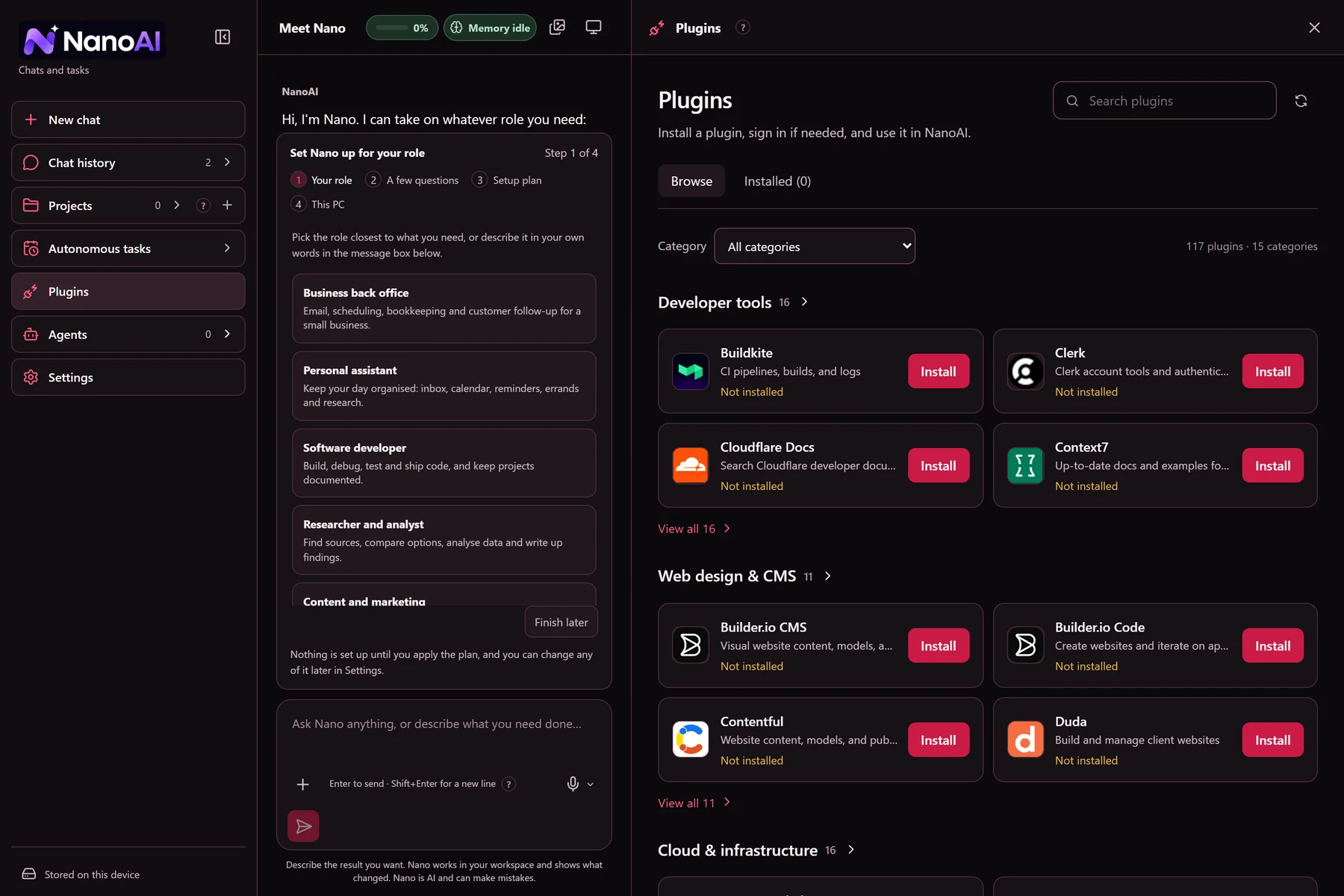
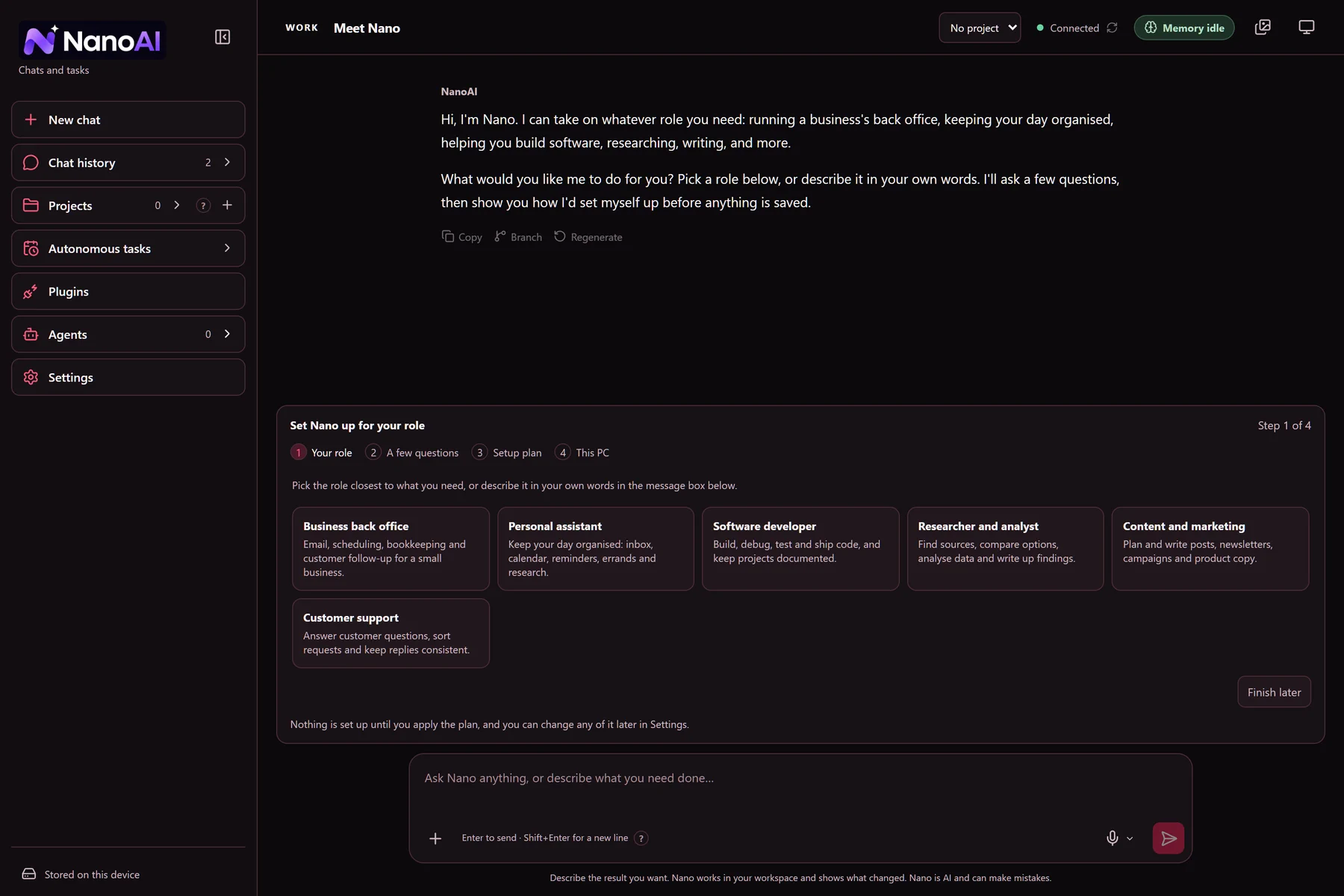
NanoAI's first chat, Meet Nano, offering six roles to set Nano up for: business back office, personal assistant, software developer, researcher and analyst, content and marketing, and customer support.
Meet NanoPick a role, or describe it in your own words. Nano asks a few questions, then shows how it would set itself up before anything is saved.
NanoAI's Plugins panel beside a chat, listing plugins by category, such as developer tools and web design, each with an Install button.
PluginsBrowse plugins by category, install the ones you use and sign in where one needs it. Nano uses them in every mode.
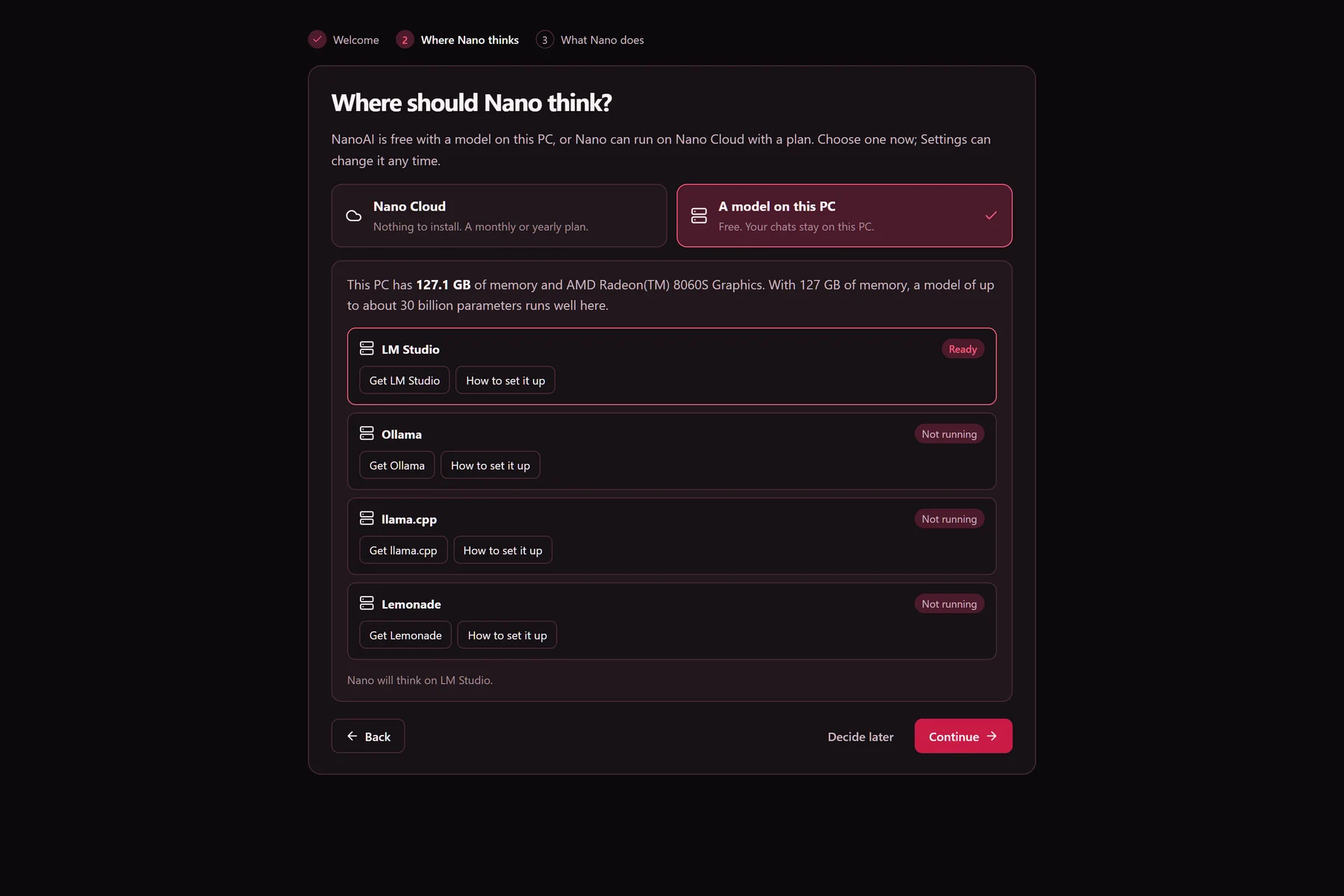
NanoAI's setup guide asking where Nano should think: Nano Cloud, or a model on this PC through LM Studio, Ollama, llama.cpp or Lemonade, with a note on what size of model the PC runs well.
Where Nano thinksChoose Nano Cloud, with nothing to install, or a free model on your PC through LM Studio, Ollama, llama.cpp or Lemonade. NanoAI checks your PC and says what size of model runs well on it.
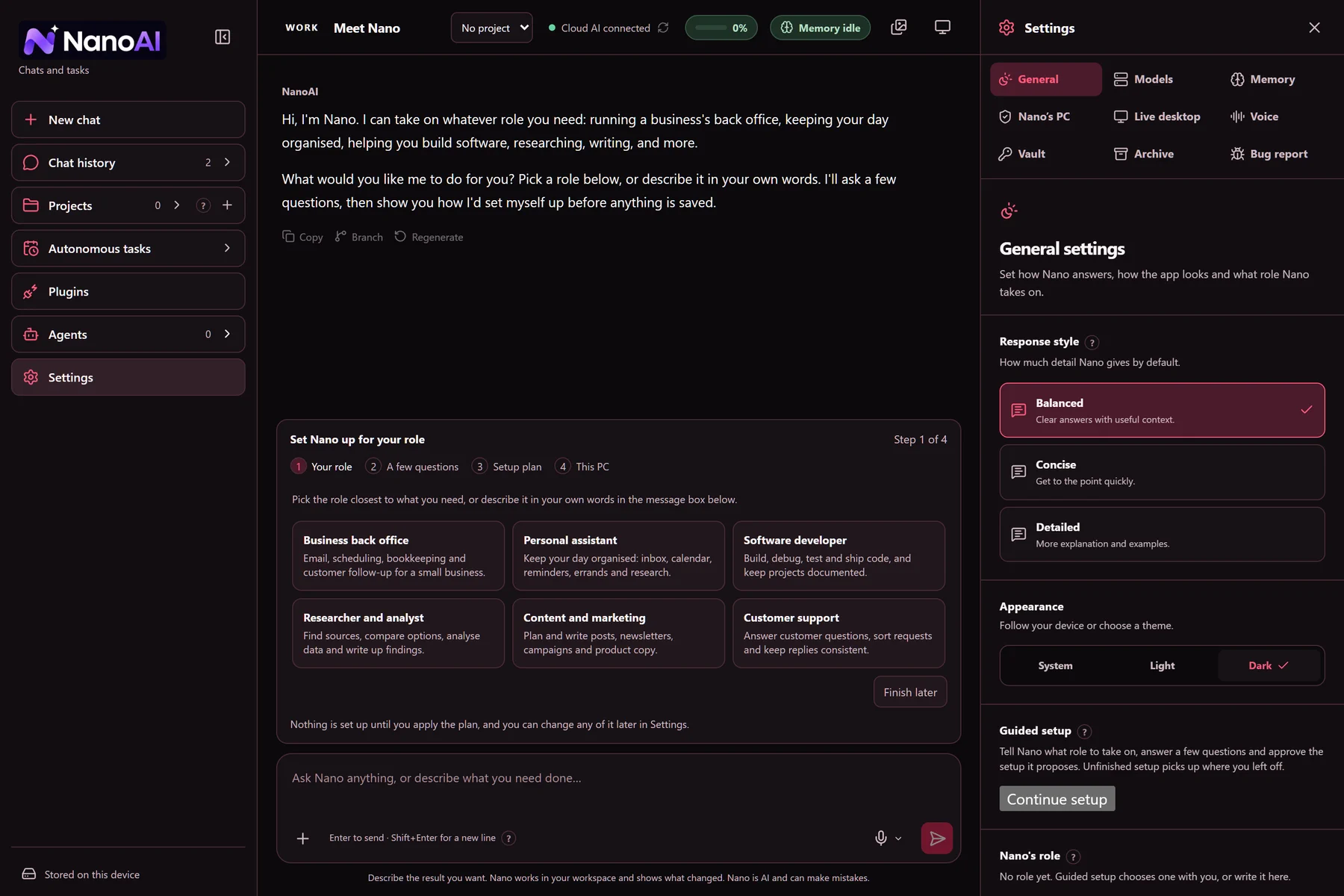
NanoAI's Settings panel open on General settings, with tabs for models, memory, Nano's PC, Live desktop, voice, vault, archive and bug reports.
SettingsChoose how Nano answers and how the app looks, and manage models, memory, Nano's own PC, Live desktop control and voice in one place.

What's inside

Everything Nano needs to get work done.

Every mode shares the same plugins, memory and tasks, so Nano picks up where it left off however you work with it.

01

Plugins for your accounts

Connect Gmail, Calendar, Drive, Docs and more. Nano uses them in every mode and asks before it sends, changes or deletes anything.

02

Automations

Put work on a schedule, like a morning summary or a weekly report, and come back to saved results you can pick up from.

03

Research and documents

Hand off research, reports and longer tasks. Nano keeps a record of every step and checks the result before it says it's done.

04

Memory you can see

Preferences, project facts and decisions carry over between conversations. Review what Nano saved, correct it or have it forgotten.

05

Specialist profiles

Build specialists with their own role, knowledge and tools, all working on the same computer of Nano's.

06

Your choice of model

Run Nano on a model on your own PC through LM Studio, Ollama, llama.cpp or Lemonade, or let Nano Cloud run it for you.

Run it your way

Free on your hardware, or hosted for you.

Your own model

Free

  • Everything NanoAI can do, with no account
  • The model runs on your PC, so its processing stays there
  • Needs a PC that can run a capable local model

Nano Cloud

Every plan does everything.

Plans differ only in how much Nano Cloud they include each week. Nothing costs extra, and one plan covers every PC you use NanoAI on.

Loading plans…

Prices in US dollars, plus sales tax where it applies. Plans renew automatically until you cancel, and you can cancel any time from your account. Nano Cloud is sold in the United States.

Download

NanoAI for Windows

One signed installer from Omega AI. NanoAI, its memory, voice and plugins run on your PC.

Windows 10 or 11, 64-bit, with room for a download of a few gigabytes. The installer asks you to accept the license agreement, then where to install.

Download for Windows

Coming soon. The NanoAI installer will be right here with the full release.

Your data

Your PC keeps your stuff.

What stays on your PC

Conversations, memory, tasks and files live in NanoAI's folder on your PC, along with the sign-ins for accounts you connect. Nano's own computer runs on your PC too.

What Nano Cloud sees

With Nano Cloud, what a request needs passes through to the model and back, and none of it is stored. Card numbers, passwords and other private details are swapped out on your PC before anything leaves it.

Questions

Good to know

Is NanoAI free?

Yes. NanoAI and everything it does are free with a model you run on your own PC. You pay only if you want Nano Cloud to run the model for you.

Do I need an account?

Only for Nano Cloud. Sign up with your email when you choose a plan, then sign in from NanoAI's Settings on each PC you want to use it on.

How does the weekly allowance work?

Each plan includes a set amount of Nano Cloud use a week, shown in NanoAI as a share used. Use it in one go or spread it out; it starts again every 7 days. If you run out early, a weekly limit reset starts a fresh week right away.

Can I use one plan on several PCs?

Yes, on as many as you like. Their use counts together against your plan's weekly allowance.

How do I cancel?

Open your account and choose Manage billing. Your plan keeps working until the end of the period you paid for, and it isn't renewed.

What does Live mode do on my PC?

In Live mode Nano controls your Windows desktop while you talk: it reads the screen and uses the mouse and keyboard you're sharing with it. Only a small Live overlay shows while it works; the conversation goes into a new chat in NanoAI, with a live transcript you can come back to. Say “Nano” to redirect it, and press Stop or Escape to take over again at any time.

What does Nano's own computer need?

A one-time setup in NanoAI: it uses Canonical Multipass to download Ubuntu and its desktop tools, so you need the room for them on your disk. After that, Nano's computer keeps its apps and files between sessions.

Can Nano make mistakes on my PC?

It can. Nano asks before it sends, changes or deletes anything, and Stop interrupts it at any time. What NanoAI does on your PC is your call; see the terms.